What's New in Memoket App V1.3.2: Cloud Sync, Editing & Device Controls
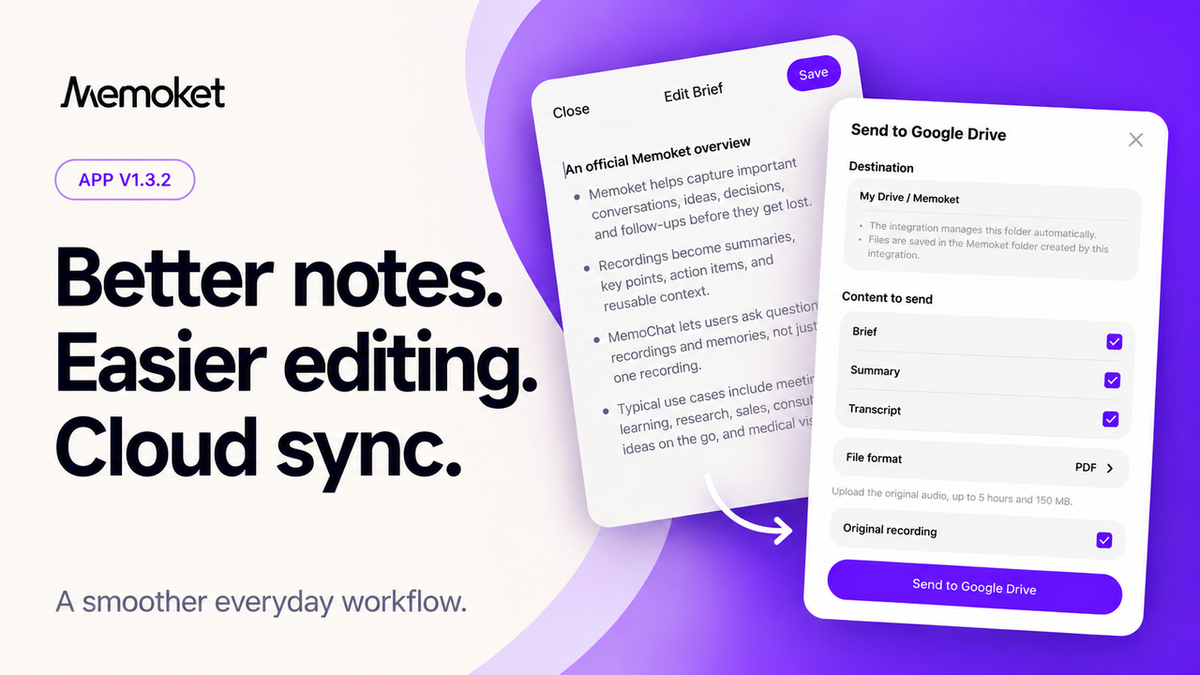
The small steps after a conversation matter. Correcting a name. Saving meeting notes to your drive. Getting your Gem set up the way you like it. Memoket App V1.3.2 focuses on making those everyday moments easier.
This update brings improvements to cloud sync and content editing, plus two device controls that help you adjust vibration and find your Gem nearby. Here is what changed and how to use it.
Your recordings, saved where you work
Keep your recording content alongside the files you already use in Google Drive, Dropbox, or OneDrive. Send an individual recording when you need it, or use Auto-send to handle future recordings automatically. Choose the notes you want to keep, pick a file format, and include the original audio when you want the conversation itself alongside your notes.

Send a recording manually to Google Drive
Open a recording and tap Share, then select your cloud service under Send to. Choose your content, file format, and whether to include the original recording.
- 1Open a recording and tap Share → Google Drive (or Dropbox / OneDrive) under Send to
- 2Select the content you want: Brief, Summary, and/or Transcript
- 3Choose a file format: TXT, Markdown, Word, or PDF
- 4Select Original recording if you also want the audio file
- 5Tap Send to Google Drive to confirm
Your files are saved in My Drive → Memoket, in the folder managed by the integration. After a customer interview, save the summary as a PDF and keep the original recording alongside it. When you return to the conversation, both the takeaways and the audio are in your drive.
Set it up once with Auto-send
For recurring meetings, configure Auto-send so future recordings go to your drive automatically after processing.

- 1Open Integrations → Google Drive (or Dropbox / OneDrive)
- 2In the Auto-send card, tap Set up
- 3Turn on Auto-send and choose your content and file format
- 4Optionally select Original recording, then tap Save
Auto-send applies to new recordings only. Recordings already in your library can be sent manually. Original audio upload supports recordings up to 5 hours and files up to 150 MB.
Easier editing, right inside your recording
A useful set of notes often needs a personal touch: a corrected name, a clearer takeaway, or a little context that makes a decision easier to understand. V1.3.2 improves the editing experience for Brief, Summary, and Transcript on the recording detail page.
Refine the key points you want to remember from a conversation.
Clarify a decision, add context, or make an action item more specific.
Correct a name or phrase directly in the conversation text.
To edit a Brief or Summary, open the relevant tab and tap the pencil icon beside the content. Make your changes and tap Save. In Transcript, tap the pencil beside the segment you want to update, edit the text, and tap Save.
After a customer call, clarify the main takeaway in Brief, add an owner and deadline in Summary, and correct a product name in Transcript. The result is a set of notes that is easier to understand and ready for the next step.
More control over your Gem
Two useful device controls are now available from your Gem's detail page. From Home, tap the device indicator in the top-left corner, then select your Memoket Gem.
Adjust vibration to your preference
Open Vibration strength and use the slider to choose how strongly your Gem vibrates. The control runs from 0% to 100%. Set it to 0% to turn vibration off, or move it toward 100% for stronger feedback. Tap Save to apply your preference.

Find your Gem nearby
Set your Gem down and cannot remember where you left it? With your Gem connected, open Find device and tap Start. Your Gem will vibrate for about 30 seconds. Stay nearby and listen for the vibration to help locate it.

The app displays Your Gem is vibrating while the feature is active. Once you have found it, tap Found it to end the search.
Everyday improvements
- Clearer quota and benefit information so you always know where you stand
- More consistent device status across the app
- Fixes to Wi-Fi transfer flows
- Improved loading for older chats and reports
- Updated font-size controls for more comfortable reading
- Sign-in fixes that keep you signed in when reopening the app with a weak or unavailable connection
Make your next recording easier to use
Update to V1.3.2 to refine your notes, send them to the drive you use, and set your Gem's vibration to a level that suits you. Share your feedback through Profile → Help & Support → Feedback.
Get the update

